# Workflow Watchlist
### How it Works
1. The watchlist (google sheet)
The Workflow Watchlist spreadsheet can be used to track your live positions, or to practice your prediction game. It saves the $symbol, current price and time of entry - along with notes, stop loss, potential take profit point, and the live price. By timestamping your watchlist entries and adding notes about your source or theory on the position, you can stay in touch with your original intent as a potential trade plays out.
2. The scripts (Google Apps Script)
The email processing script checks your inbox for emails matching a specific "Watchlist" label. (Instructions to set it up are below.)
As an example, I am checking emails from my own address with the string "xxxxx", which is easy to add to any message before hitting send. You can use any character string you like (bear in mind $, @ and ! are wildcards in Gmail and can't be used for the matching filter)\
\

### Setup
* Create the Filter in your Gmail account as per above, using any criteria you like
* Save a copy of the [Google Sheet](https://docs.google.com/spreadsheets/d/17gWVhvww0XaLdARIj-87agrw8FF2DOrwGmK0dItf5-Y/edit?usp=sharing) to your own account, use any filename you like
* In the Google Sheet menu, open Extensions > Apps Script
* Copy the two script files below into your Apps Project, using the same filenames
* Hit "Run" to test the script (see "Assets")
### Scheduling
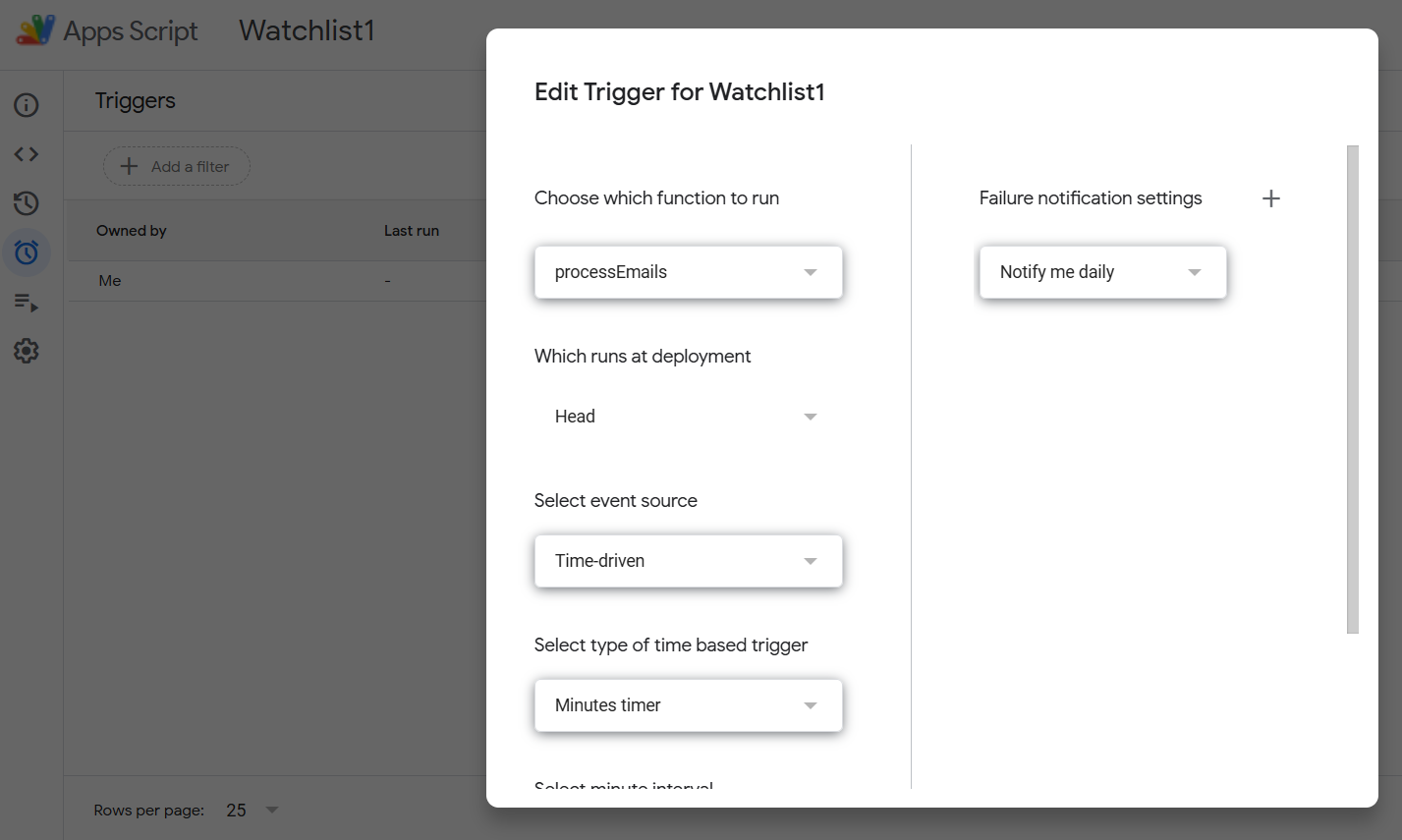
* Once the script is working you can add a scheduled Trigger in the Apps Script dashboard. You can be notified in case of script failure, so as to keep an eye on things.
### Success
When it's working you will:
* Use "share" in any app to send a post, tweet, or other message to yourself via Gmail
* Add your keyword string in the subject or body (so it matches the Gmail filter)
* See the Watchlist label added to your message in Gmail
* See the email processed automatically on the schedule you determined
* See the first available $SYMBOL from the email subject or body added to your watchlist spreadsheet, with:
* Current date
* Current price
* Live price and percent tracker from GoogleFinance\
(updates during market hours)
* Email subject saved as ticker source
* Email body saved as note
*(This features list doubles as debugging steps, checking each thing in order manually)*
### Assets
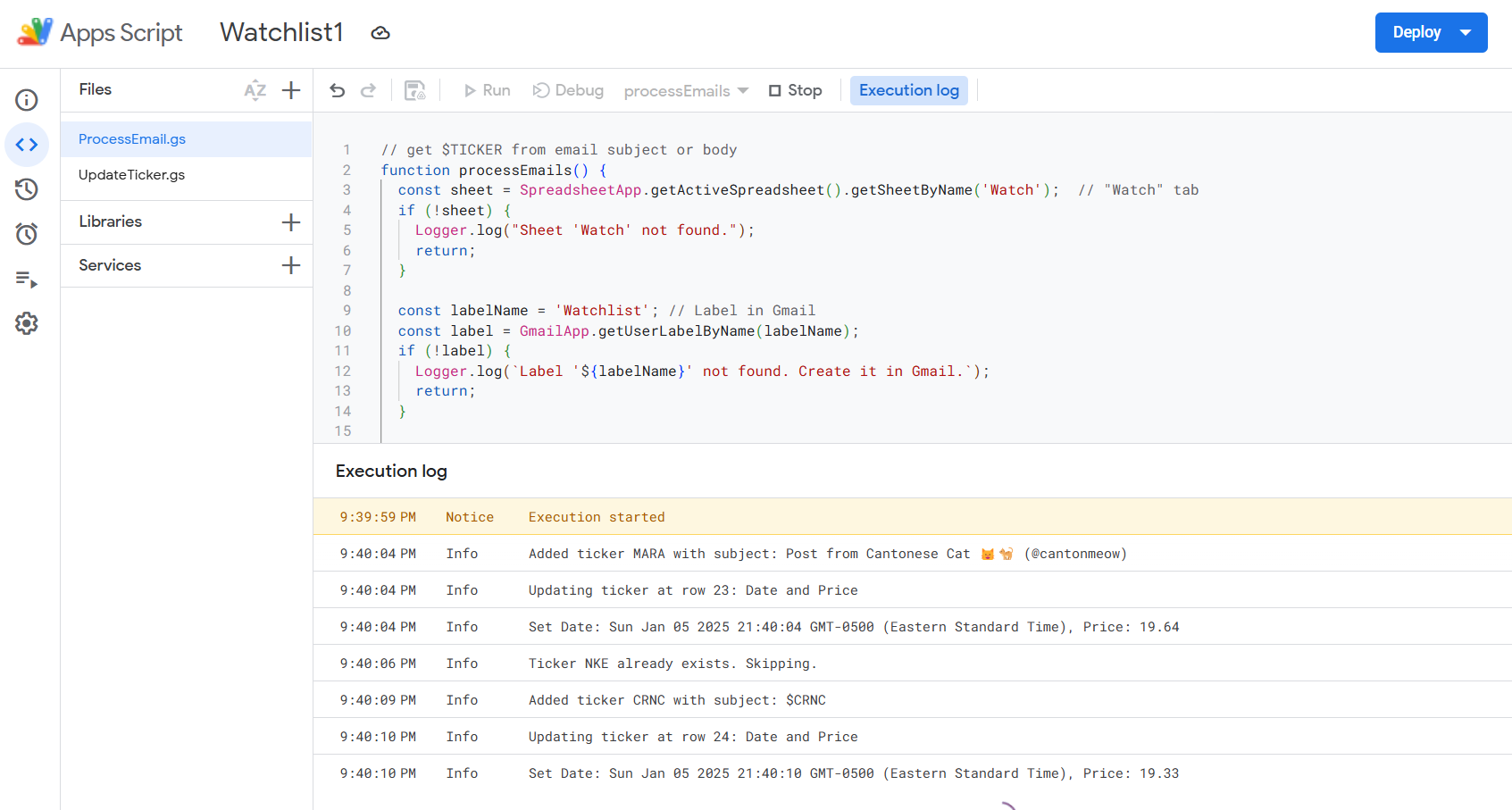
Here are the files. Just copy and paste these into your Project Editor for the Apps Script (screenshot). Make sure to save them with the same filenames as you see here:
\
\
When you run the script manually (using the "Run" button in Apps Script) you should see some debugging output in the console: \
\
### Tips & Tricks
* Type "c" for capture in column C to reset the timestamp and price
* This sheet assumes you're using long positions. Some math will need to be inverted for shorts.
* Add your stop loss and target price to see the reward:risk ratio
* Put anything in column A ("Pick") to highlight that symbol (sort column A to keep these at the top)
That should do it. This is a work in progress, feel free to tweak it and suggest improvements.
\
:v::sunglasses:
 ### Tips & Tricks
* Type "c" for capture in column C to reset the timestamp and price
* This sheet assumes you're using long positions. Some math will need to be inverted for shorts.
* Add your stop loss and target price to see the reward:risk ratio
* Put anything in column A ("Pick") to highlight that symbol (sort column A to keep these at the top)
That should do it. This is a work in progress, feel free to tweak it and suggest improvements.
\
:v::sunglasses:
### Tips & Tricks
* Type "c" for capture in column C to reset the timestamp and price
* This sheet assumes you're using long positions. Some math will need to be inverted for shorts.
* Add your stop loss and target price to see the reward:risk ratio
* Put anything in column A ("Pick") to highlight that symbol (sort column A to keep these at the top)
That should do it. This is a work in progress, feel free to tweak it and suggest improvements.
\
:v::sunglasses: